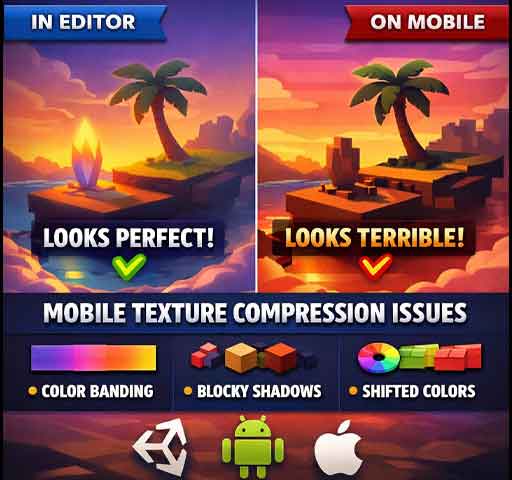
Your textures look perfect in the Editor. Smooth gradients. Clean lighting. Then you build to Android or iOS and everything looks worse. Gradients show visible lines. Shadows look blocky. Colors shift slightly.
This is often called a Unity texture compression bug. In reality, it is almost always caused by aggressive mobile compression formats.
Mobile GPUs use specific compression algorithms that reduce texture size dramatically. The tradeoff is visible artifacts if settings are not chosen carefully.
Why This Happens on Mobile Only
In the Editor, textures are often displayed uncompressed or using desktop compression formats.
On mobile builds, Unity converts textures to platform-specific formats such as:
ETC2 (Android)
ASTC (Android and iOS)
PVRTC (older iOS devices)
These formats reduce memory usage but can introduce color banding and block artifacts, especially in gradients.
What Is Color Banding?
Color banding appears when smooth gradients become segmented into visible steps.
This happens because compressed formats reduce color precision to save space.
Textures with subtle lighting, fog, or UI gradients are especially vulnerable.
Step 1: Check Platform Override Settings
Select your texture and scroll to Platform Settings.
Enable:
Override for Android or iOS
Now inspect:
Compression format
Compression quality
Max Size
The default format is not always ideal for your texture type.
Step 2: Use ASTC for Higher Quality
If your target devices support it, ASTC offers better quality at similar sizes.
In texture settings, change Compression Quality from Normal to High.
This slightly increases build time but improves visual output.
Step 4: Disable Compression for Critical Textures
For UI gradients or sky backgrounds, compression may not be acceptable.
Set:
Compression: None
Only do this for small textures. Disabling compression on large textures increases memory usage significantly.
Step 5: Avoid 16-bit Source Images
If your original texture is low bit depth, compression artifacts become worse.
Use high-quality source PNG files when possible.
Step 6: Watch for sRGB and Color Space Issues
If your project uses Linear color space, compression artifacts may appear more visible.
Check:
Project Settings → Player → Color Space
Linear lighting increases precision requirements for gradients.
Step 7: Reduce Gradient Dependency
Very subtle gradients are the hardest for compression algorithms.
Possible design solutions:
Add subtle noise to gradients
Break large gradients into smaller sections
Use shader-based gradients instead of texture gradients
Adding small dithering noise can hide banding effectively.
Common Scenario: UI Looks Fine in Editor but Broken in Build
This is extremely common because the Editor preview does not always show final mobile compression.
Always test compression visually on a real device before release.
Memory vs Quality Tradeoff
Mobile optimization is always a balance:
Smaller size → more compression → more artifacts
Higher quality → larger memory usage
There is no universal perfect setting. It depends on your target device range.
Quick Debug Checklist
Enable platform override
Test ASTC instead of ETC2
Increase compression quality
Disable compression for critical UI textures
Add subtle noise to gradients
Test on real hardware
Is This a Unity Engine Bug?
No. This is expected behavior from mobile texture compression formats.
Unity applies platform-appropriate compression automatically. The artifacts appear when the compression level is too aggressive for the visual style of your game.
Final Thoughts
Color banding and artifacts on mobile are not random. They are a predictable result of compression choices.
Review platform overrides carefully. Use higher-quality formats where necessary. Reserve uncompressed textures for only the most sensitive visuals.
With the right balance, you can maintain visual quality while keeping your mobile build optimized and efficient.