Unity Timeline Not Playing: Causes and How to Fix It

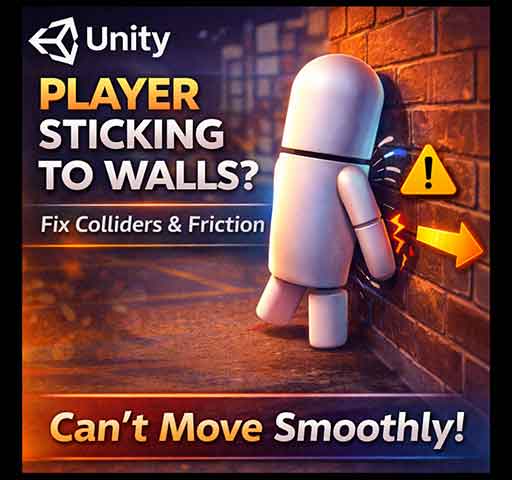
Unity Physics Layers Best Practices: Organize Collisions Efficiently
February 22, 2026
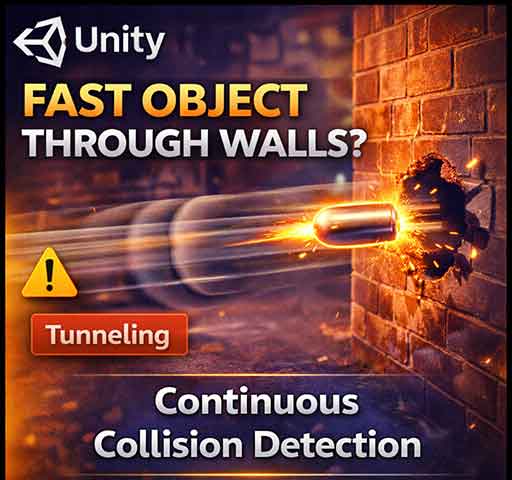
Unity Continuous vs Discrete Collision Detection: How to Prevent Tunneling
February 22, 2026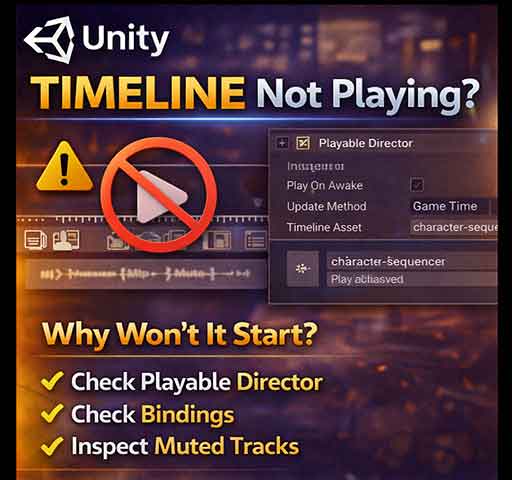
Unity Timeline is a powerful tool for cutscenes, animations, and sequencing events. But sometimes you hit “Play” and nothing happens. The Timeline does not play, leaving your sequence frozen. This can be frustrating, especially when the timeline seems correctly set up.
Here’s a thorough guide to understanding why Unity Timeline may not play and how to fix it.
Common Reasons Timeline Won’t Play
- Playable Director is paused or disabled
- Timeline is not bound to the correct objects
- Director Play On Awake is turned off
- Track or clip muted
- Animator component missing or misconfigured
- Script interference or manual time control
Step 1: Check the Playable Director
Every Timeline uses a Playable Director component. Make sure:
- The Playable Director is attached to a GameObject
- It references the correct Timeline Asset
- Play On Awake is enabled if you want it to start automatically
using UnityEngine;
using UnityEngine.Playables;

public class TimelineStarter : MonoBehaviour
{
    public PlayableDirector director;

    void Start()
    {
        if (director != null)
        {
            director.Play();
        }
    }
}
This ensures the Timeline starts if Play On Awake is off or if you want to control it via script.
Step 2: Check Track Bindings
Each track in Timeline must be bound to the correct GameObject or component. For example:
- Animation Track → Animator
- Audio Track → Audio Source
- Activation Track → GameObject
If a binding is missing, the track will not execute. To check:
- Select your Timeline Asset
- Look at each track’s “Binding” field in the Inspector
- Drag the correct object/component into the field
Step 3: Check Animator Component
Animation Tracks need a working Animator. If the Animator is missing or disabled, Timeline animations will not play.
Ensure:
- Animator is active
- Controller is assigned
- Culling Mode allows updates when Timeline is playing
Step 4: Check Timeline Time and Pausing
Sometimes the Timeline is technically “playing” but the time is paused or set to 0.
director.time = 0;
director.Evaluate(); // Updates the timeline manually
director.Play();
Also check if any scripts call Pause() on the Playable Director.
Step 5: Track and Clip Status
Check that tracks or clips are not muted or disabled. A muted track will not execute even if the Timeline plays.
- Right-click the track → Ensure “Mute Track” is unchecked
- Clips have valid start and end times
- Clips are not disabled via Inspector
Step 6: Timeline Mode vs Playable Asset
Ensure the Timeline is a proper Timeline Asset and not another type of Playable Asset. Some custom assets may require special scripts to execute.
Step 7: Using Timeline via Script
If you want full control from code, you can start, stop, and rewind the Timeline using PlayableDirector:
public class TimelineController : MonoBehaviour
{
    public PlayableDirector director;

    public void PlayTimeline()
    {
        director.Play();
    }

    public void PauseTimeline()
    {
        director.Pause();
    }

    public void StopTimeline()
    {
        director.Stop();
    }
}
Debug Checklist
- Playable Director attached and active
- Timeline Asset assigned
- Play On Awake enabled if automatic start needed
- Tracks are correctly bound
- Animator components are active and configured
- No scripts pausing or stopping the Timeline
- Tracks and clips are not muted
Performance Tip
If Timeline updates are heavy, Unity may skip frames in editor or runtime. Ensure your machine can handle the number of tracks and clips. For complex sequences, consider breaking them into multiple Timelines.
Final Thoughts
Unity Timeline not playing is almost always due to missing bindings, inactive components, or Playable Director misconfiguration. By checking these systematically, you can quickly restore Timeline functionality.
Remember: Timeline relies on proper bindings and active components. Once you ensure the Playable Director, tracks, clips, and animator are all configured, your sequences should play smoothly every time.