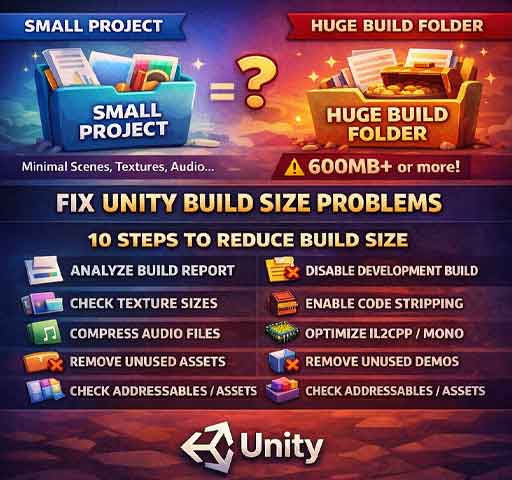
You build your game. The project feels small. A few scenes, some textures, basic audio. Then you check the build folder and the executable is hundreds of megabytes.
This is often described as a “Unity build size bug.” In reality, Unity rarely inflates builds randomly. Large builds usually come from hidden assets, unused dependencies, or incorrect build settings.
Below is a structured way to find out exactly what is increasing your build size and how to reduce it.
Step 1: Use the Build Report
Before guessing, generate a detailed build report.
After building, open:
Editor Log (for detailed size breakdown)
Search for “Build Report.” It shows which assets take the most space.
This step alone often reveals the real cause.
Step 2: Check Texture Sizes
Textures are one of the biggest contributors to build size.
Select large textures and check:
Max Size
Compression format
Mip Maps enabled
Common mistake:
4K textures used for small UI elements
Compression disabled on mobile builds
Reducing Max Size from 4096 to 1024 can dramatically shrink builds.
Step 3: Audio Files Not Compressed
WAV files stored uncompressed can add massive size.
Select audio clips and check:
Load Type
Compression Format
Quality settings
Switching to Vorbis compression often reduces file size significantly.
Step 4: Unused Assets Still Included
Unity includes assets referenced in scenes or resources.
Common hidden sources:
Assets inside Resources folder
Large test scenes accidentally added to Build Settings
ScriptableObjects referencing heavy assets
Check:
File → Build Settings → Scenes In Build
Remove unused scenes immediately.
Step 5: Resources Folder Overuse
Anything inside a Resources folder may be included in the build, even if not directly referenced.
If your project contains large unused assets in Resources, they increase build size automatically.
Better approach:
Use Addressables instead of Resources
Step 6: Development Build Enabled
If Development Build is enabled, the build may be larger.
Check Build Settings and disable:
Development Build
Script Debugging
Release builds are smaller.
Step 7: Managed Code Stripping Level
In Player Settings, check:
Managed Stripping Level
If set to Low, unused code remains in the build.
Set it to Medium or High for smaller builds (test carefully to avoid missing code).
Step 8: IL2CPP vs Mono
IL2CPP builds are sometimes larger but more optimized.
Switching between Mono and IL2CPP can slightly affect build size depending on platform.
Test both if build size is critical.
Step 9: Asset Store Packages Including Extra Content
Some imported packages include:
Demo scenes
High-resolution textures
Unused shaders
If they are referenced somewhere, they may be included in the build.
Remove demo content from your project folder entirely if not needed.
Step 10: Addressables or Asset Bundles Misconfiguration
If Addressables are misconfigured, assets may be duplicated inside the main build and asset bundles.
Verify:
No duplicate asset inclusion
Proper group configuration
Platform-Specific Issues
Different platforms have different compression behaviors.
Android may include multiple architecture builds
iOS includes additional metadata
Windows builds include engine runtime files
On Android, check:
Split APK by architecture
Target architectures selected
Including ARMv7 and ARM64 increases size.
Quick Debug Checklist
Read the build report carefully
Reduce large texture resolutions
Compress audio files
Remove unused scenes
Clean Resources folder
Enable code stripping
Remove demo content
Is This a Unity Bug?
Unexpectedly large builds are rarely caused by engine bugs. They are almost always caused by asset management decisions.
Unity includes what your project references. If something is large, it is usually because something in your project depends on it.
Final Thoughts
Large build size is a visibility problem. Once you inspect the build report and identify heavy assets, the solution becomes clear.
Focus on textures, audio, Resources folders, and unused scenes first. Those account for most size issues.
With proper asset optimization and stripping settings, Unity builds can be much smaller than expected.