Unity Camera Depth Texture Bug: Missing Shadows or Effects

How to Create a Day and Night Cycle in Unity
February 17, 2026
Unity Input System Double-Tap Bug: Accidental Multiple Inputs
February 17, 2026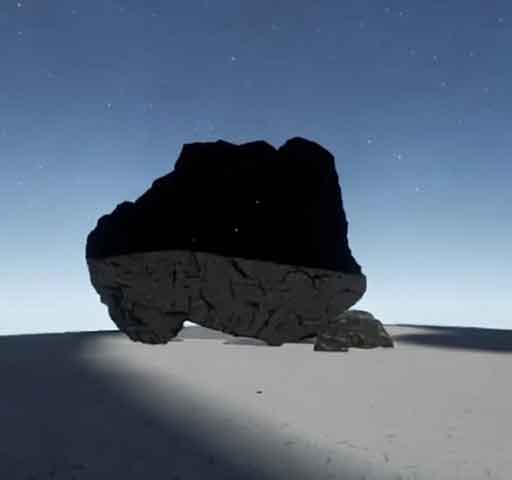
You enable effects like Depth of Field, Screen Space Shadows, or custom shaders that rely on depth textures. Everything looks fine in the Scene view, but in the Game view or the final build, shadows or post-processing effects appear missing or broken.
This is often referred to as the “Camera Depth Texture bug.” In reality, this usually occurs because the camera’s settings for depth textures are not configured correctly or because certain rendering pipelines require explicit activation.
Understanding Depth Textures in Unity
Depth textures store the distance from the camera to the closest object per pixel. Many effects use this information to create realistic visuals:
- Depth of Field
- Screen Space Ambient Occlusion (SSAO)
- Screen Space Shadows
- Custom post-processing shaders
If the camera does not generate a depth texture, these effects cannot work properly.
Step 1: Enable Depth Texture on the Camera
Select your camera and check:
- Camera → Depth Texture Mode
Enable:
- Depth
- DepthNormals (if required for effects)
By default, depth textures are not generated for performance reasons.
Step 2: Check Rendering Pipeline Requirements
Different pipelines handle depth textures differently:
- Built-in Render Pipeline: Camera → Depth Texture Mode works as expected
- URP (Universal Render Pipeline): Depth Texture must be enabled in the Forward Renderer → Renderer Features
- HDRP (High Definition Render Pipeline): Depth Texture or Depth Prepass must be enabled in Frame Settings → Camera Overrides
Failing to enable these settings is the most common cause of missing shadows or effects.
Step 3: Verify Camera Clear Flags and Layers
If the camera’s Clear Flags or Culling Mask exclude certain objects, the depth texture may not capture them.
- Clear Flags: Solid Color or Skybox is generally fine
- Culling Mask: Ensure all objects contributing to the depth are included
Step 4: HDR and MSAA Considerations
Some effects fail if HDR is disabled or MSAA is enabled:
- Depth-based effects often require HDR to read precise floating-point data
- MSAA can cause artifacts in depth calculations; consider disabling it for post-processing cameras
Step 5: Shader or Material Requirements
Custom shaders may rely on camera depth texture input. If the shader uses _CameraDepthTexture or sampler2D_float, the depth texture must be generated correctly by the pipeline.
Check your shader’s documentation and ensure the proper keyword or feature is enabled:
Shader.EnableKeyword("_CAMERA_DEPTH_TEXTURE");
Step 6: Post-Processing Stack Settings
If using the Post-Processing Stack:
- Check that Depth of Field, SSAO, or other depth-dependent effects are active
- Verify volume layer masks match the camera
- Ensure the profile is assigned to the correct camera or global volume
Step 7: Test in Build
Some effects render correctly in the Editor but fail in the build due to platform differences. Always test on target hardware.
Quick Debug Checklist
- Camera → Depth Texture Mode enabled
- Pipeline-specific depth texture settings enabled
- Clear Flags and Culling Mask correctly set
- HDR enabled if required
- Check MSAA if depth artifacts appear
- Custom shaders use correct keywords
- Post-processing volumes correctly assigned
Is This a Unity Bug?
Usually not. Missing shadows or depth-based effects are almost always caused by missing camera depth texture generation or incorrect pipeline settings.
Unity leaves depth textures off by default for performance reasons. Developers must enable them when needed.
Final Thoughts
Depth texture issues are predictable once you understand how Unity pipelines handle depth. By enabling depth textures, verifying pipeline settings, and checking camera configurations, shadows and depth-based effects will render consistently in both Editor and build.
Once configured correctly, your post-processing and depth-dependent effects will work reliably across all scenes and devices.