Collision detection is at the heart of every physics-based game in Unity. If you don’t understand it, fast-moving objects may pass through walls, or physics may feel “off.”
Unity provides two main collision detection modes for Rigidbodies: Discrete and Continuous. Choosing the right one is essential for both performance and accuracy.
Discrete Collision Detection
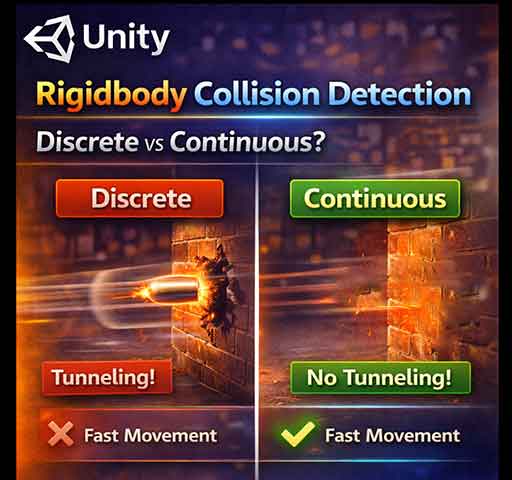
This is the default mode. Unity checks for collisions only at each physics update (FixedUpdate).
Very efficient
Perfect for slow-moving objects
May miss collisions if an object moves too fast → tunneling
Without Continuous mode, the bullet might skip the wall entirely if it moves faster than the physics timestep allows.
Performance Considerations
Discrete is faster and less CPU-intensive
Continuous increases CPU usage per object
Use continuous only on objects where tunneling is possible
Combine with proper Fixed Timestep and physics settings for best results
Common Mistakes
1. Using Continuous on Every Rigidbody
Unnecessary. Only fast-moving objects need it. Overuse can hurt performance.
2. Ignoring Timestep
Even with continuous collision detection, extremely fast objects combined with high physics step intervals can still tunnel.
3. Forgetting Layer Collision Settings
Ensure the fast object’s layer can collide with the target collider.
Debug Checklist
Is the Rigidbody set to Continuous or Continuous Dynamic?
Is the object moving fast enough to risk tunneling?
Is the Fixed Timestep low enough for high-speed physics?
Are colliders thick enough?
Quick Summary
Discrete: fast, efficient, may miss collisions → use for most objects
Continuous: predicts collisions → prevents tunneling, use for fast objects
Continuous Dynamic: predicts collisions with other moving Rigidbodies
Balance performance with accuracy
Final Thoughts
Understanding the difference between discrete and continuous collision detection is crucial for high-quality physics in Unity. Fast-moving objects, bullets, vehicles, or anything that could skip colliders must use continuous collision detection.
When combined with proper Rigidbody settings, Fixed Timestep, and good collider design, your game’s physics will be reliable and smooth, without tunneling artifacts.