Unity Root Motion Bug: Character Sliding or Teleporting

Unity Collision Detection Bug: OnCollisionEnter Not Called
February 14, 2026
Unity Serialization Loop Bug: Infinite Loading and Editor Crashes (Causes and Fixes)
February 15, 2026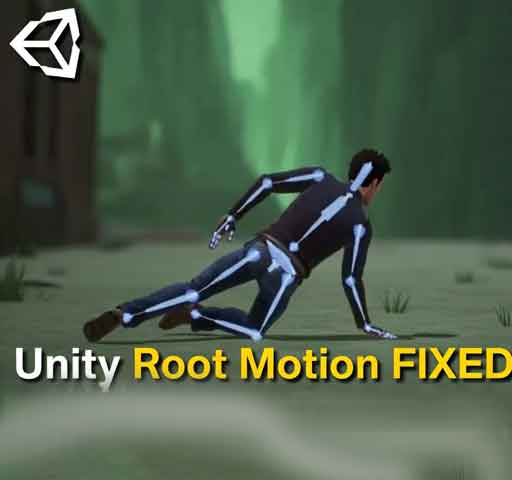
You enable Root Motion on your Animator. You expect smooth, realistic movement driven by animations. Instead, your character slides across the ground, snaps forward, or even teleports unexpectedly.
This issue is commonly called the “Unity root motion bug.” In reality, root motion problems usually come from mismatched animation settings, Rigidbody conflicts, or incorrect script movement.
This guide explains why characters slide or teleport with root motion and how to fix it properly.
What Is Root Motion in Unity?
Root motion means the movement is driven by animation data instead of code. The animation itself contains position and rotation changes, and Unity applies them to the character.
To enable root motion:
- Select the character with an Animator
- Enable Apply Root Motion
When this is enabled, Unity applies movement from the animation to the GameObject’s transform.
Problem 1: Character Sliding Instead of Stopping
Sliding usually happens when:
- The animation contains root movement but your script is also moving the character
- Friction settings are too low
- The animation root is not configured correctly
Common Mistake: Moving the Character in Code
If you are using something like:
void Update()
{
    transform.Translate(Vector3.forward * speed * Time.deltaTime);
}
And root motion is enabled, you are applying movement twice. This causes sliding or exaggerated motion.
Fix: Remove manual movement if you want full root motion control.
Problem 2: Character Teleporting Forward
Teleporting usually happens when:
- The animation’s root position jumps between frames
- Root Transform Position settings are incorrect
- Animator transitions are misconfigured
Check Import Settings
Select your animation clip and inspect:
- Root Transform Position (Y)
- Root Transform Position (XZ)
- Root Transform Rotation
If “Bake Into Pose” is incorrectly enabled or disabled, the character may snap to unexpected positions.
Try toggling Bake Into Pose for XZ and test again.
Problem 3: Rigidbody Conflicts
If your character has a Rigidbody and root motion is enabled, physics can fight animation movement.
This often results in jittering or teleporting.
Correct Setup for Rigidbody + Root Motion
If using Rigidbody, apply root motion in OnAnimatorMove():
void OnAnimatorMove()
{
    Rigidbody rb = GetComponent<Rigidbody>();
    rb.MovePosition(rb.position + animator.deltaPosition);
}
This ensures physics stays in control while still respecting animation movement.
Problem 4: Animator Transitions Causing Snaps
Teleport-like movement often happens during transitions between animations.
Check:
- Transition duration
- Exit time settings
- Root motion consistency between animations
If one animation has strong root motion and the next has none, the character may snap.
Problem 5: Mixing NavMeshAgent with Root Motion
If you are using NavMeshAgent and root motion together, movement conflicts are common.
By default, NavMeshAgent controls position, while root motion also tries to move the character.
Fix approach:
- Disable NavMeshAgent position updates
- Sync agent velocity with animation
Example:
agent.updatePosition = false;
agent.updateRotation = false;
Then manually sync agent position with root motion.
Problem 6: Incorrect Avatar Setup
If the Avatar is not configured correctly (especially with humanoid rigs), root motion can behave unpredictably.
Check:
- Rig type is set correctly (Humanoid or Generic)
- Avatar is valid
- No warnings in the import settings
Problem 7: Root Bone Not Centered
If the animation’s root bone is not positioned properly in the modeling software, root motion may contain unintended offsets.
This is common with third-party assets.
Fix: Adjust root bone in the 3D modeling tool or re-export the animation.
When Should You Use Root Motion?
Root motion works best for:
- Realistic third-person movement
- Combat animations
- Precise cinematic motion
It is less ideal for:
- Arcade-style movement
- Networked multiplayer without prediction
- Physics-heavy characters
Quick Debug Checklist
If your character is sliding or teleporting, check:
- Are you moving the character in code?
- Are Rigidbody and root motion conflicting?
- Are animation import settings correct?
- Are transitions smooth?
- Is NavMeshAgent interfering?
- Is the root bone clean?
Is This a Unity Bug?
In most cases, no. Root motion is working exactly as designed. Problems happen when animation-driven movement and code-driven movement fight each other.
Understanding who controls position—animation, physics, or navigation—is the key to solving root motion issues.
Conclusion
Character sliding or teleporting with root motion is usually caused by configuration conflicts, not a broken engine feature.
Choose one movement authority:
- Animation (root motion)
- Physics (Rigidbody)
- Navigation (NavMeshAgent)
- Manual script control
Do not mix them without carefully syncing them.
Once configured correctly, root motion produces smooth, natural movement without sliding or snapping.