Unity 3D Audio Bug: Spatial Sound Not Working Correctly

Unity Transparent Sorting Bug: Why UI Elements Render Incorrectly
February 14, 2026
Unity Collision Detection Bug: OnCollisionEnter Not Called
February 14, 2026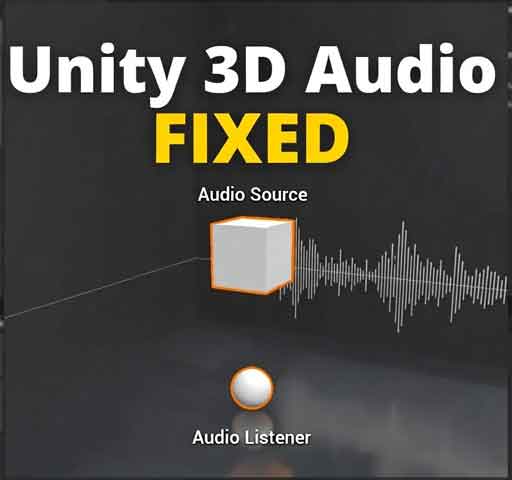
You add an Audio Source to your scene. You enable 3D sound. You move the player away from the object… and nothing changes. The sound plays at full volume everywhere. Or worse, the spatial effect behaves strangely.
This is often described as the “Unity 3D audio bug.” In most cases, it is not a bug in Unity. It is usually caused by incorrect Audio Source settings, listener placement, or spatial blend configuration.
This article explains why spatial sound may not work correctly and how to fix it step by step.
How 3D Audio Works in Unity
For spatial sound to work properly, Unity needs:
- An Audio Listener (usually attached to the camera)
- An Audio Source with Spatial Blend set to 3D
- Proper distance and attenuation settings
If any of these are misconfigured, the sound will not behave as expected.
Common Cause 1: Spatial Blend Is Set to 2D
The most common mistake is forgetting to set Spatial Blend to fully 3D.
In the Audio Source component:
- Find Spatial Blend slider
- Set it to 1 (3D)
If it is set to 0, the sound will always behave like 2D audio and ignore distance.
Common Cause 2: No Audio Listener in Scene
If there is no Audio Listener, or more than one, Unity may behave unpredictably.
Rules:
- You must have exactly one Audio Listener active
- It is usually attached to the main camera
If you see a console warning about multiple listeners, fix it immediately.
Common Cause 3: Incorrect Min and Max Distance
3D audio depends on distance settings.
Check:
- Min Distance
- Max Distance
- Volume Rolloff mode
If Max Distance is too large, the sound may appear constant everywhere.
Example good setup:
- Min Distance: 1
- Max Distance: 20
- Rolloff Mode: Logarithmic
Common Cause 4: Audio Listener Not Moving
Spatial sound depends on the distance between the Audio Source and the Audio Listener.
If your player moves but the camera (with the listener) does not, spatial changes may not occur.
Make sure the Audio Listener follows the player correctly.
Common Cause 5: Audio Source Attached to Camera
If your Audio Source is attached to the same object as the Audio Listener, it will always sound 2D.
This is because the distance between them is zero.
Attach 3D sound sources to world objects instead.
Common Cause 6: Custom Audio Mixer Settings
If you are using an Audio Mixer, check:
- Volume attenuation
- Spatialization settings
- Effects like compression
Sometimes mixer settings override spatial perception.
Common Cause 7: Using PlayOneShot Incorrectly
If you call:
audioSource.PlayOneShot(clip);
It still respects spatial settings, but if the Audio Source is incorrectly positioned at runtime, spatial behavior will be wrong.
Always confirm the object position before playing the sound.
Common Cause 8: 2D Project Settings
Even in a 2D game, 3D audio can work. However, if your camera never moves on the Z axis, spatial differences may be subtle.
In 2D games, spatial sound usually depends on X-axis positioning.
Common Cause 9: Doppler Effect Misconfiguration
If Doppler Level is too high, audio may distort or behave strangely when objects move.
Try reducing Doppler Level to 0 for testing.
How to Properly Test 3D Audio
To confirm spatial sound works:
- Place an Audio Source in the scene
- Set Spatial Blend to 1 (3D)
- Set Max Distance to a small value (like 10)
- Move the camera away during play
You should clearly hear volume decrease.
Advanced Tip: Custom Rolloff Curve
You can customize how sound fades over distance by using Custom Rolloff.
This gives more control over attenuation behavior.
Is This Really a Unity Bug?
In almost all cases, no. Spatial sound issues are caused by configuration errors or misunderstanding how the listener-source relationship works.
True engine-level 3D audio bugs are rare.
Best Practices for Stable 3D Audio
- Always confirm Spatial Blend is set correctly
- Use only one Audio Listener
- Keep distance values realistic
- Test audio with exaggerated distances
- Verify object positions at runtime
Conclusion
The Unity 3D audio “bug” is usually a setup issue rather than an engine flaw. Spatial sound depends entirely on the relationship between the Audio Source and the Audio Listener.
Once Spatial Blend, distance settings, and listener placement are configured correctly, 3D audio becomes predictable and reliable.
Understanding these fundamentals helps you build immersive sound environments without unexpected behavior.