Unity Transparent Sorting Bug: Why UI Elements Render Incorrectly

Unity Skybox Seams Bug: Visible Edges in Skybox Textures
February 14, 2026
Unity 3D Audio Bug: Spatial Sound Not Working Correctly
February 14, 2026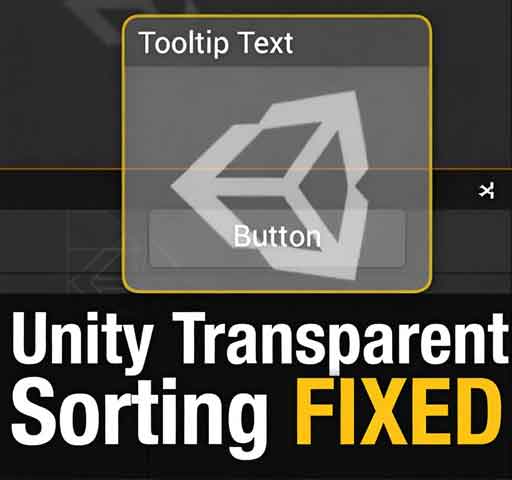
You set up your UI carefully. Buttons are layered correctly. Panels are in the right order. Then you press Play and something looks wrong. A tooltip appears behind a panel. A transparent image overlaps something it should not. Elements flicker or render out of order.
This issue is often called the “Unity transparent sorting bug.” In reality, it usually comes down to how Unity sorts transparent objects and UI elements during rendering.
This article explains why transparent sorting issues happen and how to fix them reliably.
How Unity Renders Transparent Objects
Unity renders objects in different queues. Opaque objects are rendered first. Transparent objects are rendered afterward.
Transparent objects are sorted based on:
- Render queue
- Sorting layer
- Order in layer
- Distance from the camera
If two transparent objects overlap, incorrect sorting can occur because transparency does not write to the depth buffer the same way opaque objects do.
Common Scenario 1: UI Elements Overlapping Incorrectly
For UI inside a Canvas, Unity does not rely on camera distance. Instead, it uses the hierarchy order.
In most cases:
- Elements lower in the hierarchy render on top
If your UI appears in the wrong order, check the hierarchy first.
Common Scenario 2: Multiple Canvases Causing Conflicts
When you use multiple Canvases, Unity treats each Canvas as a separate batch.
Sorting between different Canvases depends on:
- Sorting Layer
- Order in Layer
- Override Sorting option
If a popup appears behind another UI element from a different Canvas, you may need to enable Override Sorting and increase its Order in Layer.
Common Scenario 3: World Space Canvas and 3D Objects
If your Canvas is set to World Space, it behaves like a 3D object.
This means:
- Camera distance affects rendering
- Transparent materials can conflict with other transparent objects
In this case, Z position matters. Slight differences in depth can cause flickering or incorrect overlap.
Common Scenario 4: Transparent Shaders and Materials
Transparent materials do not write to the depth buffer. When two transparent objects overlap, Unity sorts them by distance from the camera.
If objects are very close together, sorting errors may appear.
Solutions include:
- Adjusting Z position slightly
- Using different render queues
- Avoiding overlapping transparent surfaces
Common Scenario 5: Incorrect Sorting Layer
If you mix sprites and UI elements, sorting layers can conflict.
For SpriteRenderer components, sorting is controlled by:
- Sorting Layer
- Order in Layer
For UI inside a Canvas, sorting depends on Canvas settings instead.
Mixing the two systems without careful setup can cause unexpected results.
Fix 1: Adjust UI Hierarchy Order
Inside a single Canvas, the easiest fix is reordering objects in the hierarchy.
Elements lower in the list render on top.
Fix 2: Use Override Sorting on Canvas
For multiple Canvases:
- Select the Canvas
- Enable Override Sorting
- Set Sorting Layer
- Adjust Order in Layer
This gives you full control over which Canvas renders above others.
Fix 3: Avoid Z-Fighting in World Space UI
If using World Space Canvas:
- Separate UI elements slightly on the Z axis
- Avoid placing them at identical depth values
This prevents flickering caused by depth conflicts.
Fix 4: Use Proper Shader Types
For UI, use default UI shaders whenever possible.
Custom transparent shaders may introduce unexpected sorting behavior if render queues are misconfigured.
Fix 5: Adjust Render Queue (Advanced)
You can manually set a material’s render queue:
material.renderQueue = 3000;
Higher values render later. This is an advanced technique and should be used carefully.
Fix 6: Keep Transparent Overlap Minimal
The more transparent objects overlap, the more sorting problems you risk.
Design UI layouts to reduce heavy transparency stacking.
Debugging Transparent Sorting Issues
To identify the problem:
- Check hierarchy order
- Check Canvas settings
- Verify Sorting Layer and Order in Layer
- Temporarily move objects apart in Z space
- Test with a simple unlit material
These steps usually reveal the root cause quickly.
Is This a Unity Bug?
Most of the time, no. Transparent sorting is inherently complex because transparent objects cannot rely on depth buffering the same way opaque objects do.
Unity follows predictable rules. When those rules are understood, the problem becomes manageable.
Best Practices to Avoid Transparent Sorting Problems
- Keep UI in as few Canvases as practical
- Use hierarchy order intentionally
- Minimize overlapping transparent elements
- Avoid unnecessary World Space UI
- Test sorting early in development
Conclusion
The Unity transparent sorting issue is usually caused by hierarchy order, Canvas settings, or depth conflicts, not a true engine bug.
Once you understand how Unity sorts transparent elements, you can control rendering order precisely and prevent UI overlap problems.
Careful layering and structured Canvas setup make a huge difference in stable UI rendering.