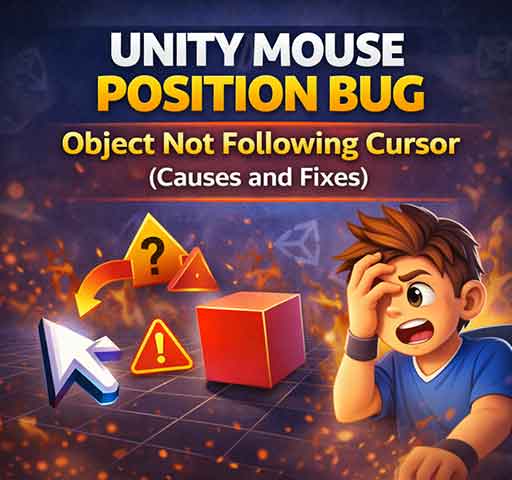
A very common Unity issue happens when you try to convert the mouse position to world coordinates, and the object does not follow the cursor correctly. It appears offset, stuck on a strange plane, or completely misplaced.
This is often described as a “Mouse Position bug,” but in reality, it is usually caused by misunderstanding how screen space and world space work in Unity.
This article explains why screen-to-world conversion fails and how to fix it properly in both 2D and 3D projects.
Understanding Screen Space vs World Space
Input.mousePosition returns a position in screen space.
Screen space means:
X and Y are pixel coordinates
Z is always 0
Origin is bottom-left of the screen
World space is completely different. It represents actual 3D positions inside your scene.
This often produces incorrect results because Input.mousePosition.z is 0.
For perspective cameras, Unity needs a distance from the camera to calculate the correct world position.
Correct approach:
Vector3 mousePos = Input.mousePosition;
mousePos.z = 10f; // Distance from camera
Vector3 worldPos = Camera.main.ScreenToWorldPoint(mousePos);
The Z value must represent how far away from the camera you want the point to be.
Common Mistake 2: Using ScreenToWorldPoint in 3D Without Raycasting
In 3D games, you usually do not want a fixed Z distance. You want the mouse to hit objects in the world.
Using a raycast is more accurate:
Ray ray = Camera.main.ScreenPointToRay(Input.mousePosition);
RaycastHit hit;

if (Physics.Raycast(ray, out hit))
{
    Debug.Log("Hit point: " + hit.point);
}
This casts a ray from the camera through the mouse position and detects where it hits.
This is the correct solution for:
Click-to-move systems
Shooting mechanics
Object selection
Common Mistake 3: Wrong Camera Reference
If you are using multiple cameras, Camera.main may not be the correct camera.
This leads to incorrect coordinate conversion.
Better approach:
Store a direct reference to the camera you are using
Avoid relying on Camera.main in complex setups
Common Mistake 4: UI Interference
If you are clicking through UI elements, your raycast may still hit objects behind the UI.
To prevent this, check if the pointer is over UI:
using UnityEngine.EventSystems;

if (EventSystem.current.IsPointerOverGameObject())
{
    return;
}
This prevents unintended world interactions.
2D Specific Issues
In 2D projects, conversion is simpler, but mistakes still happen.
Setting Z to 0 is important in 2D to avoid depth issues.
Orthographic vs Perspective Cameras
Orthographic cameras behave differently from perspective cameras.
With orthographic cameras:
Z distance has less impact on scaling
ScreenToWorldPoint is more predictable
With perspective cameras:
Z value strongly affects position
Objects appear offset if Z is incorrect
Always check your camera type when debugging mouse coordinate issues.
Common Offset Problem
If your object appears slightly offset from the cursor, possible causes include:
Incorrect Z distance
Camera not aligned with world plane
Object pivot offset
Canvas scaling (for UI interactions)
Check object pivot in the Inspector. A shifted pivot often causes visual misalignment.
Reliable Fix Patterns
For 3D Object Placement
Use raycasting.
For 2D Object Following Cursor
Use ScreenToWorldPoint and manually set Z to 0.
For Ground Placement in 3D
Use a plane intersection:
Plane plane = new Plane(Vector3.up, Vector3.zero);
Ray ray = Camera.main.ScreenPointToRay(Input.mousePosition);

float distance;

if (plane.Raycast(ray, out distance))
{
    Vector3 point = ray.GetPoint(distance);
    transform.position = point;
}
This is stable and avoids random Z values.
How to Debug Mouse Position Issues
Log Input.mousePosition
Log world position result
Verify camera reference
Check camera projection type
Confirm object pivot alignment
Most mouse coordinate bugs are small misunderstandings, not engine problems.
Conclusion
The Unity Mouse Position “bug” is usually caused by incorrect screen-to-world conversion. The key is understanding that Input.mousePosition exists in screen space, and you must provide correct depth information when converting it.
For 3D interactions, raycasting is the safest solution. For 2D games, always reset Z after conversion.
Once you understand how the camera handles projection, mouse coordinate issues become predictable and easy to fix.