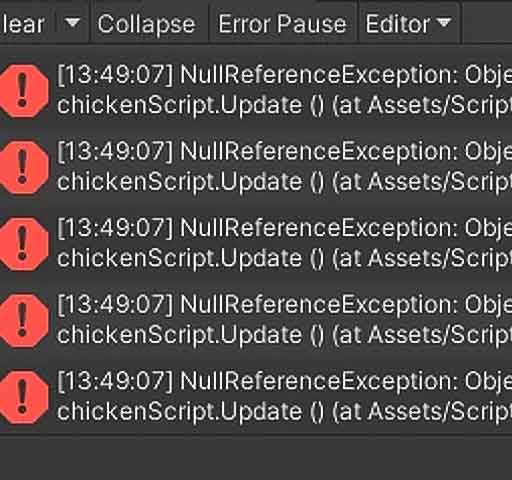
If you have worked with Unity for more than a few hours, you have almost certainly seen this error:
NullReferenceException: Object reference not set to an instance of an object
This is one of the most frequent errors Unity developers encounter, and it can be confusing if you do not understand what it means, why it happens, and how to fix it properly. In this guide, we will explain the error, its common causes, and practical fixes you can implement immediately.
What Is a NullReferenceException in Unity?
A NullReferenceException occurs when your script tries to access a reference that does not point to an actual instance of an object. In simpler terms, you are trying to use something, like a GameObject or component, but the variable you are using is not set to anything—it is null.
For example, the Unity console may show:
NullReferenceException: Object reference not set to an instance of an object
    at PlayerController.Update() ...
This tells you exactly where the null reference occurred, in this case inside the Update() method of the PlayerController script.
Common Causes of NullReferenceException
Even though NullReferenceException is a fundamental C# issue, Unity developers run into it frequently due to how Unity handles scene objects, components, and scripts. Common causes include:
1. Public Variable Never Assigned in the Inspector
If you declare a public or [SerializeField] variable but never assign a value, Unity will treat it as null at runtime. For example:
public GameObject player;
If you forget to drag the Player object into this field in the Inspector, Unity will try to use player, which is null, causing the exception.
2. Using GetComponent() Incorrectly
If you attempt to get a component that does not exist, you will get a null reference. For example:
Renderer rend = GetComponent<Renderer>();
rend.material.color = Color.red;
If the object does not have a Renderer component, rend will be null and the second line will throw a NullReferenceException.
3. Trying to Access a Destroyed Object
Unity removes an object from the scene when you call Destroy(). If you try to use that object afterward, its reference will be null, causing this error.
4. Incorrect Script Execution Order
Sometimes one script expects another to initialize a reference first. If the initialization happens later than expected, you will see a null reference.
5. Object Not Found with Find Methods
Using GameObject.Find() or FindWithTag() can return null if no object matches the name or tag. Using the result without checking for null will cause an exception.
Practical Ways to Fix a NullReferenceException
1. Assign References in the Inspector
Look for public fields in your script and assign them manually in the Inspector:
Wrapping risky code in a try/catch block lets you handle null references gracefully:
try {
    myLight.color = Color.yellow;
} catch (NullReferenceException ex) {
    Debug.Log("Light not set in Inspector!");
}
Debugging Techniques
Read the Console Stack Trace
The Unity Console shows the exact line and script causing the exception. Double-clicking the error opens the file in your code editor.
Use Debug.Log
Insert logs to inspect variables:
Debug.Log(player);
Debug.Log(player.health);
If the console prints “null,” you know which reference is missing.
Use the IDE Debugger
Set a breakpoint on the error line to inspect variable values and execution flow. This is the most reliable method for complex bugs.
Best Practices to Prevent NullReferenceException
Plan object relationships before coding to ensure references are assigned.
Use [SerializeField] instead of GameObject.Find() for robustness.
Avoid destroying objects without clearing references in other scripts.
Use defensive programming by always assuming a reference might be null.
Conclusion
The NullReferenceException is one of the most common Unity errors, but it is also one of the easiest to fix once you understand it. It occurs when a script attempts to use an object that has not been assigned, initialized, or has been destroyed. By assigning references correctly, using safe GetComponent calls, adding null checks, and debugging carefully, you can prevent these errors from disrupting your project.
Understanding and fixing NullReferenceException will make your Unity development more stable, efficient, and enjoyable, allowing you to focus on building high-quality games and interactive experiences.