Unity Rigidbody Sleep Bug: Causes, Workarounds, and Prevention

Unity Performance Bottlenecks Explained: How to Identify and Fix Them
February 8, 2026
Unity Tilemap Collider Bug: Gaps in Collision Detection
February 8, 2026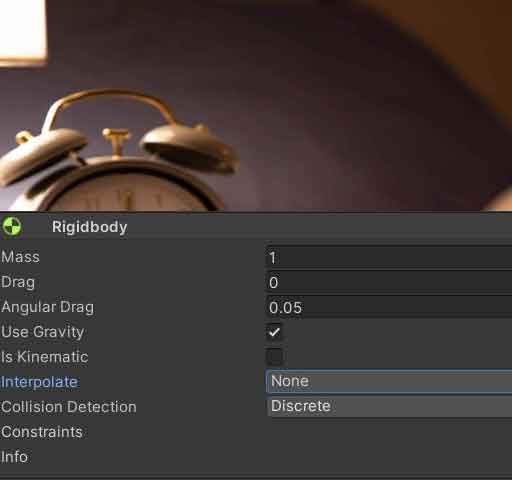
One of the most frustrating and subtle bugs in Unity physics development is the Rigidbody Sleep Bug. This issue manifests when Rigidbody objects fail to wake up from sleep state under certain conditions, causing physics interactions to break, objects to pass through colliders, or movement systems to become unresponsive. Unlike obvious crashes or error messages, this bug often appears as inconsistent, hard-to-reproduce physics behavior that can undermine the core gameplay of any project using Unity’s physics engine.
What is the Rigidbody Sleep Bug?
In Unity, Rigidbody components have an automatic sleep system designed to optimize performance. When a Rigidbody’s velocity drops below a certain threshold (controlled by sleepThreshold in Unity 2019.3+ or Sleep Velocity in earlier versions) and no forces are acting upon it, Unity puts the Rigidbody to “sleep.” While sleeping, the physics engine skips calculations for that object, saving CPU cycles. The bug occurs when a sleeping Rigidbody should wake up due to external influences (collisions, forces, or manual activation) but fails to do so.
The console won’t show error messages—instead, you’ll experience symptoms like:
- Objects falling through floors or passing through walls
- Character controllers getting stuck when landing
- Physics-based puzzles failing to trigger
- Stacked objects not reacting to impacts
- Intermittent collision detection failures
Technical Causes of the Sleep Bug
Understanding the underlying causes requires examining how Unity’s physics engine (PhysX by default) manages sleep states.
1. Incorrect Sleep Threshold Configuration
Unity’s default sleep threshold (0.005) works for most scenarios, but can cause problems with:
- Very light objects: Mass below 0.1 with default gravity may not accumulate enough velocity to stay awake
- Slow-moving objects: Objects moving at precise, slow speeds (like puzzle pieces)
- Micro-oscillations: Objects settling into position with tiny vibrations
2. Physics Query vs. Simulation Mismatch
This is the most common technical cause. When you use:
Physics.Raycast()
or
Physics.CheckSphere()
These are query operations that don’t automatically wake up sleeping Rigidbodies. However, the actual physics simulation in FixedUpdate() does respect sleep states. This mismatch leads to situations where:
- A raycast detects a collision
- Your code applies a force or teleports an object
- The sleeping Rigidbody doesn’t process these changes until woken
- One frame of incorrect physics occurs
3. Manual Velocity Manipulation
When you directly set a Rigidbody’s velocity:
rigidbody.velocity = new Vector3(10, 0, 0);
This doesn’t automatically wake up the Rigidbody if it’s sleeping. The velocity assignment happens, but the physics engine won’t apply it until the next time the Rigidbody is awake and processed.
4. Interpolation Conflicts
Rigidbodies with interpolation enabled (especially “Interpolate” mode) can experience sleep bugs when:
- The interpolated position differs significantly from the simulated position
- Sleep calculations use simulated velocity, not visual interpolated velocity
- This causes premature sleeping while the object appears to be moving
5. Compound Collider Complexity
Objects with multiple colliders forming a compound shape can experience partial sleep states where:
- Some colliders are awake while others sleep
- Collision responses become inconsistent
- Sleep state transitions happen at different times for different colliders
Reproducing the Bug: Common Scenarios
Scenario 1: Platform Falling Through Static Geometry
// Platform controller script
void Update() {
    if (Input.GetKeyDown(KeyCode.Space)) {
        // This doesn't wake up the Rigidbody!
        platformRigidbody.velocity = Vector3.down * 5f;
    }
}

// Some frames later, collision with floor might be missed
// because platform Rigidbody is still sleeping
Scenario 2: Character Landing on Moving Platform
void OnCollisionEnter(Collision collision) {
    if (collision.gameObject.CompareTag("Player")) {
        // Platform starts moving but might still be sleeping
        MovePlatform();
    }
}

void MovePlatform() {
    // If platform was sleeping, this force might not apply immediately
    platformRigidbody.AddForce(Vector3.right * 100f);
}
Scenario 3: Physics-Based Trigger System
void FixedUpdate() {
    // Check if object is above threshold
    if (Physics.CheckSphere(transform.position, 1f)) {
        // Activate connected Rigidbody
        connectedBody.AddForce(Vector3.up * 50f);
        // Bug: If connectedBody was sleeping, force might be delayed
    }
}
Workarounds and Solutions
1. Always Wake Up Rigidbodies Before Manipulation
The most reliable solution: explicitly wake up Rigidbodies before applying forces or changing velocity.
// BAD: May fail if Rigidbody is sleeping
rigidbody.AddForce(Vector3.forward * 100f);

// GOOD: Always wakes up the Rigidbody first
rigidbody.WakeUp();
rigidbody.AddForce(Vector3.forward * 100f);

// Also for velocity assignments
rigidbody.WakeUp();
rigidbody.velocity = new Vector3(10, 0, 0);
2. Create a Safe Physics Utility Class
Implement wrapper methods that handle sleep state automatically:
public static class PhysicsUtils {
    public static void AddForceSafe(Rigidbody rb, Vector3 force, ForceMode mode = ForceMode.Force) {
        if (rb != null && rb.gameObject.activeInHierarchy) {
            rb.WakeUp();
            rb.AddForce(force, mode);
        }
    }

    public static void SetVelocitySafe(Rigidbody rb, Vector3 velocity) {
        if (rb != null && rb.gameObject.activeInHierarchy) {
            rb.WakeUp();
            rb.velocity = velocity;
        }
    }

    public static void MovePositionSafe(Rigidbody rb, Vector3 position) {
        if (rb != null && rb.gameObject.activeInHierarchy) {
            rb.WakeUp();
            rb.MovePosition(position);
        }
    }
}
3. Configure Sleep Threshold Per Object
Adjust sleep thresholds based on object requirements:
void Start() {
    // For precision objects that need to stay awake
    if (requiresPreciseMovement) {
        rigidbody.sleepThreshold = 0.001f; // Lower threshold
        rigidbody.maxAngularVelocity = 7f; // Prevent premature sleep from rotation
    }

    // For heavy static objects that should sleep quickly
    if (isHeavyStaticObject) {
        rigidbody.sleepThreshold = 0.01f; // Higher threshold
    }
}
4. Handle Physics Queries Properly
When using physics queries that might interact with sleeping objects:
// Instead of just checking
if (Physics.Raycast(ray, out RaycastHit hit)) {
    Rigidbody hitRb = hit.rigidbody;
    if (hitRb != null) {
        hitRb.WakeUp(); // Critical: Wake up before applying forces
        hitRb.AddForce(Vector3.up * 50f);
    }
}
5. Use Continuous Collision Detection for Critical Objects
For objects that must never pass through geometry:
void Start() {
    rigidbody.collisionDetectionMode = CollisionDetectionMode.Continuous;
    // Or for dynamic fast objects:
    rigidbody.collisionDetectionMode = CollisionDetectionMode.ContinuousDynamic;
}
Note: Continuous collision detection is more expensive but prevents tunneling through thin colliders when objects might be sleeping between frames.
6. Implement Manual Sleep State Checking
For critical game systems, manually check and manage sleep states:
public class SleepAwareRigidbody : MonoBehaviour {
    private Rigidbody rb;
    private bool wasSleeping = false;

    void Start() {
        rb = GetComponent<Rigidbody>();
    }

    void FixedUpdate() {
        bool isSleeping = rb.IsSleeping();

        // Log state changes for debugging
        if (wasSleeping && !isSleeping) {
            Debug.Log($"{name} woke up at {Time.time}");
        } else if (!wasSleeping && isSleeping) {
            Debug.Log($"{name} fell asleep at {Time.time}");
        }

        // Force wake if critical object is sleeping
        if (isSleeping && isCriticalObject) {
            rb.WakeUp();
        }

        wasSleeping = isSleeping;
    }
}
Prevention Strategies
1. Establish Physics Coding Standards
- Always call
WakeUp()beforeAddForce(),velocityassignment, orMovePosition() - Never assume physics queries wake up Rigidbodies
- Document which objects should never sleep (add comments in code)
2. Implement Automated Testing
[UnityTest]
public IEnumerator Test_Rigidbody_WakesUp_OnForceApplication() {
    // Create test object
    GameObject testObj = new GameObject("TestRigidbody");
    Rigidbody rb = testObj.AddComponent<Rigidbody>();
    testObj.AddComponent<BoxCollider>();

    // Let it sleep
    yield return new WaitForSeconds(1f);
    Assert.IsTrue(rb.IsSleeping(), "Rigidbody should be sleeping");

    // Apply force with WakeUp
    rb.WakeUp();
    rb.AddForce(Vector3.up * 10f);

    // Should now be awake
    yield return new WaitForFixedUpdate();
    Assert.IsFalse(rb.IsSleeping(), "Rigidbody should be awake after force");

    GameObject.Destroy(testObj);
}
3. Use Physics Layers Strategically
Configure layers so critical objects don’t interact with sleep-prone objects:
// In Layer Collision Matrix (Edit > Project Settings > Physics):
// - Layer "AlwaysAwake" interacts with everything
// - Layer "SleepProne" doesn't interact with critical objects
// This prevents sleep bugs from affecting critical gameplay
4. Monitor Sleep States in Development
Create an editor visualization tool:
#if UNITY_EDITOR
[InitializeOnLoad]
public static class SleepStateVisualizer {
    static SleepStateVisualizer() {
        SceneView.duringSceneGui += OnSceneGUI;
    }

    static void OnSceneGUI(SceneView sceneView) {
        foreach (var rb in GameObject.FindObjectsOfType<Rigidbody>()) {
            if (rb.IsSleeping()) {
                Handles.color = Color.red;
                Handles.Label(rb.position, "SLEEPING");
                Handles.DrawWireCube(rb.position, Vector3.one * 0.5f);
            }
        }
    }
}
#endif
5. Consider Disabling Sleep for Critical Objects
For objects where sleep is never appropriate:
void Start() {
    rigidbody.sleepMode = RigidbodySleepMode.NeverSleep;
    // Use judiciously - has performance implications
}
Performance Considerations
While preventing sleep bugs is important, indiscriminate use of WakeUp() or disabling sleep entirely can hurt performance:
- Each awake Rigidbody adds to physics simulation cost
- Frequent sleep/wake transitions have overhead
- Balance reliability with performance needs
Recommended approach: Profile your game’s physics performance with and without sleep optimizations. Use Unity’s Physics Profiler module to identify if sleep management is causing performance issues.
Conclusion
The Unity Rigidbody Sleep Bug represents a classic case of optimization (automatic sleep) conflicting with gameplay reliability. By understanding that physics queries don’t wake Rigidbodies, that manual velocity assignments bypass sleep checks, and that certain object configurations are prone to premature sleeping, developers can implement robust solutions.
The key takeaways are:
- Always wake Rigidbodies explicitly before applying forces or changing velocity
- Configure sleep thresholds appropriately for different object types
- Use continuous collision detection for objects that must never tunnel
- Implement testing and monitoring to catch sleep-related issues early
- Balance reliability with performance by being selective about sleep management
With these strategies, what begins as a frustrating, intermittent bug becomes a manageable aspect of physics-based development. By treating sleep state management as a first-class concern in your physics code, you’ll create more reliable, predictable interactions that form the foundation of polished gameplay experiences.