Unity Rigidbody Interpolation Explained: Smooth Movement Without Jitter

Unity Kinematic Rigidbody Explained: What It Really Does and When to Use It
February 21, 2026
Why Objects Pass Through Walls (Tunneling)
February 22, 2026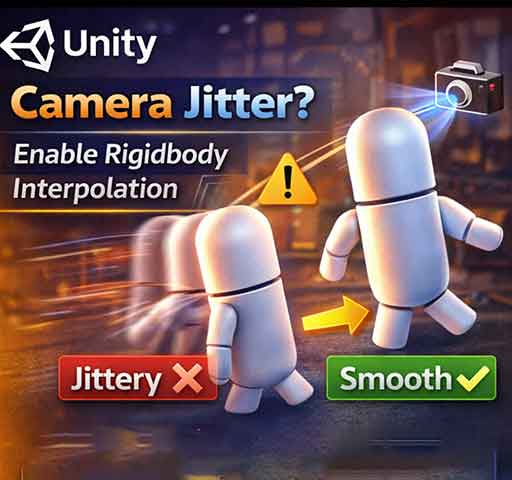
Ever notice that your Rigidbody object looks jittery when your camera follows it? Or that fast-moving objects appear to stutter even though the physics simulation seems fine?
This is usually caused by the way Unity updates physics vs. rendering frames. Rigidbody Interpolation is designed to solve this exact problem.
What Is Rigidbody Interpolation?
Interpolation tells Unity to smoothly update a Rigidbody’s position between physics updates so it matches the visual frame rate.
Physics updates happen in FixedUpdate(), which runs at a fixed timestep (default 0.02s). Rendering happens in Update(), which can run at 60, 120, or more frames per second. Without interpolation, the visual position can appear to jump between physics steps.
Interpolation Modes
Selectable in the Rigidbody component under Interpolation:
- None: Default. No smoothing. Rigidbody moves only at FixedUpdate steps.
- Interpolate: Smooths Rigidbody movement by interpolating between previous and current physics positions.
- Extrapolate: Predicts future position based on current velocity. Can reduce perceived lag but may overshoot slightly.
When to Use Interpolate
Use it when:
- The Rigidbody is observed by the camera (player or moving object)
- You want smooth visual motion
- You are not applying physics forces at extremely high speeds
Example:
Rigidbody rb = GetComponent<Rigidbody>();
rb.interpolation = RigidbodyInterpolation.Interpolate;
This ensures that the object moves smoothly between physics steps.
When to Use Extrapolate
Extrapolate predicts where the Rigidbody will be at the next frame.
- Good for networked games where lag makes objects appear behind
- Can reduce stutter in fast-moving objects
- May overshoot and produce minor visual artifacts
rb.interpolation = RigidbodyInterpolation.Extrapolate;
Why Interpolation Solves Camera Jitter
Imagine a camera following a player Rigidbody:
- Physics updates every 0.02s
- Rendering updates every 0.016s (60 FPS)
- Without interpolation, the camera sees the Rigidbody only at discrete positions → jitter
- With interpolation, Unity calculates intermediate positions → smooth movement
Example: Rigidbody Following by Camera
public class CameraFollow : MonoBehaviour
{
    public Transform target;
    public float smoothSpeed = 5f;
    public Vector3 offset;

    void LateUpdate()
    {
        Vector3 desiredPosition = target.position + offset;
        Vector3 smoothedPosition = Vector3.Lerp(transform.position, desiredPosition, smoothSpeed * Time.deltaTime);
        transform.position = smoothedPosition;
    }
}
If the Rigidbody uses interpolation, the target.position is smoother, resulting in a much cleaner camera motion.
Performance Considerations
- Interpolation adds minimal overhead
- Only matters for visible Rigidbody objects
- Dynamic objects not seen by the camera usually don’t need interpolation
Common Mistakes
1. Forgetting to Enable Interpolation
By default, Rigidbody interpolation is set to None. Fast-moving or camera-followed objects will appear jittery.
2. Using Interpolation on Static Objects
Unnecessary. Static objects don’t move, so interpolation provides no benefit.
3. Confusing Interpolation and Extrapolation
Interpolation smooths visually; extrapolation predicts. Use extrapolation only when you want predictive motion.
Quick Summary
- Rigidbody physics runs at FixedUpdate
- Render frames run independently
- Interpolation smooths Rigidbody movement for visuals
- Interpolate = smooth past positions
- Extrapolate = predict future positions
Final Thoughts
If your moving Rigidbody looks jittery or stutters when observed by a camera, enabling interpolation usually fixes it immediately.
Interpolation is a simple setting but can drastically improve perceived movement quality. Understanding when and how to use it ensures your physics-driven objects always look smooth.