Parallax Scrolling in 3D (Unity Guide)

Dynamic Camera Shake Systems
February 24, 2026
Dolly Track Customization in Unity
February 24, 2026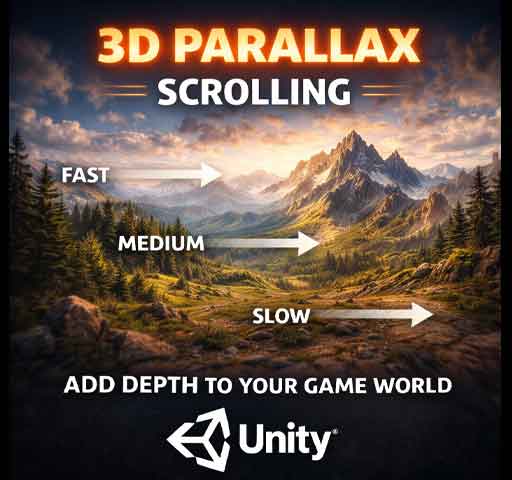
There’s a simple trick that makes a game world feel deeper than it really is.
Move the background slower than the foreground.
That’s parallax.
In 2D games, it’s common. In 3D, it becomes even more powerful. When done right, parallax scrolling in 3D creates scale, depth, and immersion without heavy performance cost.
In this guide, we’ll break down what 3D parallax is, how it works, how to build it in Unity, and how to customize it for different types of games.
What Is Parallax Scrolling?
Parallax scrolling is the effect where objects at different distances move at different speeds relative to the camera.
- Close objects move quickly.
- Far objects move slowly.
- Very distant objects barely move at all.
This mimics how depth works in real life. When you’re in a car, nearby trees rush past, but mountains in the distance barely shift.
That difference in motion creates the illusion of depth.
Parallax in 3D vs 2D
In 2D games, parallax is often faked by moving background layers manually.
In 3D, you get some parallax naturally because objects exist at different positions in space. However, sometimes you want to exaggerate or control the effect for artistic reasons.
For example:
- Side-scrolling 3D platformers
- Endless runners
- Stylized environments
- Low-poly scenes
In these cases, you often customize parallax instead of relying purely on real-world perspective.
Basic 3D Parallax Setup
The simplest way to create parallax in Unity is by placing objects at different Z positions (or depth positions).
Example layout:
- Foreground trees at Z = 5
- Midground hills at Z = 15
- Background mountains at Z = 40
As the camera moves sideways, objects closer to it appear to move faster across the screen.
This works automatically with perspective cameras.
Custom Parallax Control (Scripted)
Sometimes you don’t want realistic depth. You want artistic control.
You can create a script that moves objects at a percentage of the camera’s movement.
Basic Parallax Script
using UnityEngine;

public class ParallaxLayer : MonoBehaviour
{
    public Transform cameraTransform;
    public float parallaxMultiplier = 0.5f;

    private Vector3 lastCameraPosition;

    void Start()
    {
        lastCameraPosition = cameraTransform.position;
    }

    void LateUpdate()
    {
        Vector3 deltaMovement = cameraTransform.position - lastCameraPosition;

        transform.position += new Vector3(
            deltaMovement.x * parallaxMultiplier,
            deltaMovement.y * parallaxMultiplier,
            0f
        );

        lastCameraPosition = cameraTransform.position;
    }
}
This script moves the object based on camera movement.
- Multiplier = 1 → moves with camera
- Multiplier = 0.5 → moves half as fast
- Multiplier = 0 → stays fixed
Attach this to background layers and adjust the multiplier per layer.
Creating Depth Layers
For a strong 3D parallax effect, divide your environment into layers:
- Foreground – rocks, fences, close buildings
- Midground – trees, hills
- Background – mountains, skyline
- Sky – skybox or distant geometry
Each layer gets a different parallax multiplier.
Subtle differences look more natural than extreme ones.
Parallax with Infinite Backgrounds
If your game scrolls infinitely, you’ll need looping backgrounds.
Basic idea:
- Use two identical background objects.
- Move them with parallax.
- When one moves out of view, reposition it ahead.
This creates a seamless infinite scrolling illusion.
Simple Loop Example
using UnityEngine;

public class LoopingBackground : MonoBehaviour
{
    public float width;
    public Transform cameraTransform;

    void Update()
    {
        if (cameraTransform.position.x > transform.position.x + width)
        {
            transform.position += new Vector3(width * 2f, 0f, 0f);
        }
    }
}
Combine this with parallax for endless environments.
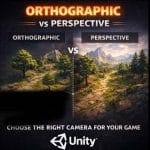
Orthographic vs Perspective Camera
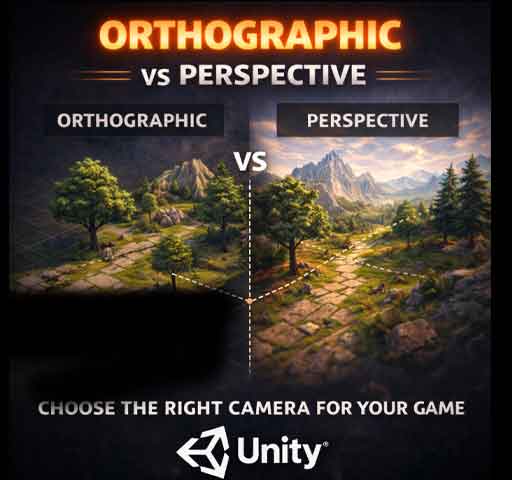
Perspective Camera
Natural depth and parallax happen automatically.
Orthographic Camera
No automatic depth scaling. You must script parallax manually.
If you’re building a 2.5D game using an orthographic camera, scripting parallax layers is essential.
Performance Considerations
Parallax is generally cheap, but keep these in mind:
- Use static batching when possible.
- Avoid unnecessary Update() calls.
- Group background objects under parent transforms.
- Keep background materials simple.
The visual benefit is high compared to the performance cost.
Advanced Techniques
1. Depth-Based Shader Parallax
You can create shader-based parallax using camera position inside a shader. This allows for subtle movement effects without moving actual objects.
This works well for distant clouds or fog layers.
2. Parallax with Camera Rotation
If the camera rotates slightly (for example, when aiming), you can apply small parallax offsets based on rotation.
This adds cinematic depth to first-person or third-person games.
3. Parallax + Fog
Adding atmospheric fog increases depth perception. Distant objects fade slightly, reinforcing the parallax effect.
Common Mistakes
- Overusing extreme parallax values
- Moving background faster than foreground
- Ignoring vertical movement
- Forgetting to reset looping layers properly
Subtlety is key. If players notice the trick, it can feel artificial.
Design Tips
Think about scale.
If your world is huge, distant layers should barely move. If it’s stylized or arcade-style, you can exaggerate motion for dramatic effect.
Test your scene while moving at full player speed. What looks good while standing still may look too strong during fast gameplay.
When Parallax Makes the Biggest Difference
Parallax shines in:
- Side-scrolling games
- 2.5D platformers
- Endless runners
- Stylized indie projects
- Low-poly environments
Even simple geometry feels layered and alive when parallax is tuned correctly.
Final Thoughts
Parallax scrolling in 3D is one of the easiest ways to add depth without adding heavy assets.
You’re not increasing polygon count. You’re not adding complex lighting. You’re simply controlling motion.
And sometimes, that’s enough to transform a flat scene into something that feels expansive and immersive.
Start with three layers. Adjust multipliers carefully. Keep it subtle. Once it feels natural, your world will instantly feel deeper.