Dolly Track Customization in Unity

Parallax Scrolling in 3D (Unity Guide)
February 24, 2026
Audio Ducking Systems in Unity
February 25, 2026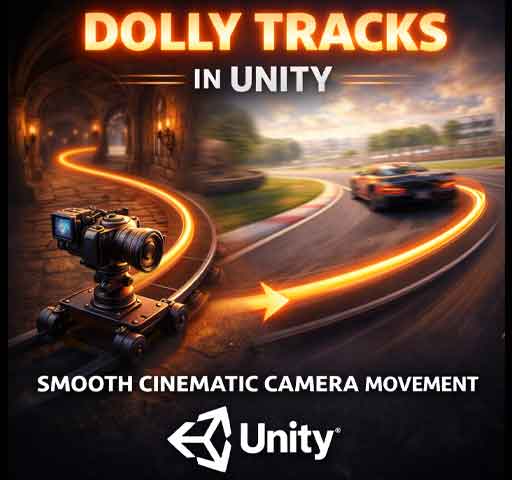
Sometimes a static camera just isn’t enough.
You want the camera to glide through a hallway. Circle around a character during dialogue. Follow a racing car smoothly along a track. That’s where a dolly track comes in.
A dolly track lets your camera move along a predefined path. Instead of manually animating every position, you define a curve and let the camera travel along it. When you customize that system properly, you get cinematic movement that feels intentional and polished.
In this guide, we’ll walk through what dolly tracks are, how to use them in Unity, how to customize them, and how to build your own system if needed.
What Is a Dolly Track?
A dolly track is a path that a camera follows over time. Think of it like rails for your camera. In film production, real cameras move along physical tracks. In Unity, we simulate that behavior with splines or waypoint systems.
Dolly tracks are commonly used for:
- Cinematic cutscenes
- Intro sequences
- Racing games
- Guided tours
- Boss fight camera sweeps
The goal is smooth, controlled movement that feels deliberate.
Using Cinemachine for Dolly Tracks
The easiest way to create dolly tracks in Unity is with Cinemachine. Once installed from the Package Manager, it gives you professional-level camera tools.
To create a dolly camera:
- Create an empty GameObject.
- Add a Cinemachine Smooth Path component.
- Place waypoints along the path.
- Create a Cinemachine Virtual Camera.
- Set its Body to Tracked Dolly.
- Assign the path to the virtual camera.
Now your camera can move along the defined path.
Customizing the Dolly Path
This is where things get interesting. A default path works, but customization makes it cinematic.
1. Adjusting Waypoints
Each waypoint controls position and rotation. You can:
- Curve the path for smooth turns
- Raise or lower sections for vertical movement
- Tighten curves for dramatic motion
Smoother curves create natural movement. Sharp angles create tension.
2. Controlling Speed
You can animate the camera’s position along the path using the Path Position value.
Instead of constant speed, try easing in and out. Slow at the start, faster in the middle, slow at the end. That feels more cinematic.
Example script to move along a path:
using UnityEngine;
using Cinemachine;

public class DollyMover : MonoBehaviour
{
    public CinemachineVirtualCamera virtualCamera;
    public float speed = 2f;

    private CinemachineTrackedDolly dolly;

    void Start()
    {
        dolly = virtualCamera.GetCinemachineComponent<CinemachineTrackedDolly>();
    }

    void Update()
    {
        dolly.m_PathPosition += speed * Time.deltaTime;
    }
}
This moves the camera along the path over time.
Custom Easing for Better Motion
Linear movement feels robotic. You can improve it with easing curves.
Example using Mathf.SmoothStep:
float t = Mathf.Clamp01(elapsedTime / duration);
float easedT = Mathf.SmoothStep(0f, 1f, t);
dolly.m_PathPosition = easedT * maxPathPosition;
This makes the camera accelerate smoothly and slow down at the end.
Look At Customization
Movement is only half the story. Where the camera looks matters just as much.
With Cinemachine, you can assign a Look At target. The camera will automatically rotate toward it while traveling along the path.
Creative ideas:
- Track a character walking through a corridor
- Focus on a boss while circling
- Shift Look At targets during the sequence
You can even change targets dynamically through code.
Offset and Framing Adjustments
Tracked Dolly includes offset settings. These allow you to shift the camera slightly left, right, up, or down relative to the path.
This is useful when:
- You want over-the-shoulder framing
- You want asymmetrical composition
- You want subtle cinematic angle shifts
Small offsets make scenes feel professionally framed.
Looping vs One-Shot Paths
Some dolly tracks should loop, like in racing games. Others should run once, like cutscenes.
You can control this behavior by:
- Resetting Path Position manually
- Clamping the value at the end
- Using Timeline for precise control
Choose the behavior that fits your gameplay needs.
Building a Custom Dolly System (Without Cinemachine)
If you want full control or a lightweight system, you can build your own using waypoints.
Basic idea:
- Create an array of Transform waypoints
- Interpolate between them
- Move the camera smoothly along the path
Simple example:
using UnityEngine;

public class SimpleDolly : MonoBehaviour
{
    public Transform[] waypoints;
    public float speed = 5f;

    private int currentIndex = 0;

    void Update()
    {
        if (currentIndex >= waypoints.Length) return;

        Transform target = waypoints[currentIndex];
        transform.position = Vector3.MoveTowards(
            transform.position,
            target.position,
            speed * Time.deltaTime
        );

        if (Vector3.Distance(transform.position, target.position) < 0.1f)
        {
            currentIndex++;
        }
    }
}
This is simple but effective for basic camera rails.
Adding Dynamic Elements
A powerful dolly system reacts to gameplay.
For example:
- Slow down when action happens
- Shake slightly during explosions
- Zoom in at key moments
- Pause at dramatic points
Combining dolly movement with camera shake, depth of field, or field-of-view changes creates strong cinematic impact.
Performance Considerations
Dolly systems are lightweight, but remember:
- Avoid excessive recalculations each frame
- Cache components in Start()
- Use simple interpolation when possible
Most performance cost comes from post-processing effects, not the dolly path itself.
Design Tips for Cinematic Quality
Here are a few practical tips:
- Don’t move too fast unless it’s intentional
- Avoid sudden direction changes
- Use easing curves
- Frame your subject properly
- Test in gameplay, not just Scene view
Watch how movies handle camera movement. Slow build-ups. Controlled pacing. Focused framing. That same logic applies in Unity.
Final Thoughts
Dolly track customization is about control and intention.
You’re not just moving a camera from point A to point B. You’re guiding the player’s attention. You’re building tension. You’re shaping emotion.
Start with a simple path. Add easing. Adjust framing. Layer in dynamic effects. With a little polish, even a basic camera rail can feel cinematic.
And once you get comfortable with it, you’ll start seeing opportunities to use dolly movement everywhere.